
この記事は 2023 年 10 月時点の記録です(2026 年 7 月 追記)
この記事の実装は外部ライブラリに依存せず、React の標準機能だけで組み立てています。そのため現在でもそのまま動きます。past / present / future という考え方も変わっていません。
そのうえで、実際にアプリへ組み込むときにつまずきやすい点を 4 つ補足します。書いた本人が後から気づいたものです。
1. オブジェクトを扱うと重複チェックが効きません
recordメソッドに次の行があります。if (newPresent === undos.present) return;記事の例では
Tが文字列なので、これで「同じ内容なら記録しない」という判定が働きます。しかしTにオブジェクトや配列を入れると、===は中身ではなく参照を比べます。内容が同じでも別のオブジェクトなら「変化した」と判定され、履歴が無駄に積み上がります。フォームの入力内容やキャンバスの状態など、オブジェクトを履歴に持たせる場合は、比較関数を差し替えられるようにしておくと安全です。
2. past に上限がありません
pastは操作のたびに追加されるだけで、削られることがありません。お絵かきアプリのように操作回数が多いものだと、履歴がそのままメモリを圧迫します。実用上は上限を決めて、超えた分を先頭から捨てる形にしておくのが無難です。
const MAX_HISTORY = 50;

const newPast = [...prev.past, prev.present].slice(-MAX_HISTORY);
何段階まで戻せれば十分かは、アプリの性格で決めてください。
3. clear の @ts-ignore は消せます
clearメソッドでpresentにnullを入れるために// @ts-ignoreを使っていますが、これは型チェックを黙らせているだけで、問題は残ったままです。実際、記事の後半(方法❷)ではpresent: ''にしていて、前半と食い違っています。初期値を引数で受け取る形にすれば、
@ts-ignoreは不要になります。static clear<T>( initial: T, setUndos: Dispatch<SetStateAction<UndoType<T>>>, setActions: Dispatch<SetStateAction<T[]>>, ) { setUndos({past: [], present: initial, future: []}); setActions([]); }4. クラスにする必要はありません
JUndoMapperはstaticメソッドだけを持つクラスです。インスタンスを作る場面がないので、ふつうの関数として export するだけで足ります。記事中でconstructorの中身が途中と完成版で変わっているのも、この構造が必要とされていない表れです。また、undo / redo は「前の状態に戻す」という性質上、
useReducerと相性が良い処理です。状態の更新ロジックを一か所にまとめられるので、規模が大きくなりそうなら検討する価値があります。記事の実装はuseStateを複数組み合わせているため、undosとactionsの同期を呼び出し側が意識する必要があります。※ 上記は本文に掲載したコードを読み直して整理したものです。改めて動作検証を行ったものではありません。
開発環境
この記事では、以下の開発環境を前提としています。

Undo/Redo 動作を理解する
Undo/Redo 機能はアプリの状態 ( State ) の一部であり、それを実装するなら下記のようにその状態の履歴を追跡する必要があります。
たとえば、カウンター アプリの状態の形状 ( Shape ) は次のようになります。
{
  counter: 10
}
このようなアプリにUndo/Redo 機能を実装したい場合は、次の質問に答えられるように、より多くの状態を保存する必要性が生じます。
- 元に戻したり ( Undo ) 、やり直したり ( Redo ) することが残っているか?
🎯 実装:canUndo()/canRedo()で対応! - 現在 ( Present ) の状態はどうなっているのか?
🎯 実装:Undo()/Redo()で対応! - 元に戻すスタック内の過去 ( Past ) および将来 ( Future ) の状態は何なのか?
🎯 実装:Undo()/Redo()で対応!
これらの質問に答えるための状態の形状は下記のようになります。
{
  past: Array<T>,
  present: T,
  future: Array<T>
}
Undo() / Redo() を実行すると状態の形状はどう変化するのか見てみましょう!
カウンターは現在 10 とします。
{
  counter: {
    past: [0, 1, 2, 3, 4, 5, 6, 7, 8, 9],
    present: 10,
    future: []
  }
}
Undo() を実行します。
9 が表示されるように、present にある 10 を future に移動させ、past のラスト値 9 を present に移動させます。(⬇︎)
{
  counter: {
    past: [0, 1, 2, 3, 4, 5, 6, 7, 8],
    present: 9,
    future: [10]
  }
}

// 2回目のUndo()を実行した場合
{
  counter: {
    past: [0, 1, 2, 3, 4, 5, 6, 7],
    present: 8,
    future: [9, 10]
  }
}
Redo() を実行します。
Undo() と逆で、past のラストに present の 8 を移動させ、future の 9 を present に移動させます。(⬇︎)
{
  counter: {
    past: [0, 1, 2, 3, 4, 5, 6, 7, 8],
    present: 9,
    future: [10]
  }
}
このような動きを理解さえすれば、
各自必要な Redo/Undo 機能を適宜応用できるかと思います。また、Undo・Redoで管理したい値は数値、文字列、配列、オブジェクトのどれでも問題なく適用できます。
次は、この内容をベースにサンプルアプリを作成します。
Undo/Redo 機能を実装する
TODO アプリを作成する
このリンクをベースに追加・編集・削除可能な Todo アプリを作成し動作を確認します。(⬇︎)
// app/todo.tsx

import React, {memo, useState} from 'react';
import {
  View,
  Text,
  FlatList,
  TextInput,
  StyleSheet,
  TouchableOpacity,
} from 'react-native';
import {MaterialIcons} from '@expo/vector-icons';

const Todo = () => {
  const [task, setTask] = useState<string>('');
  const [tasks, setTasks] = useState<string[]>([]);
  const [editIndex, setEditIndex] = useState(-1);

  const onAddTask = () => {
    if (task) {
      if (editIndex !== -1) {
        const updatedTasks = [...tasks];
        updatedTasks.splice(editIndex, 1, task);
        setTasks(updatedTasks);
        setEditIndex(-1);
      } else {
        setTasks(prev => [...prev, task]);
      }
      setTask('');
    }
  };

  const onEditTask = (index: number) => {
    setTask(() => tasks[index]);
    setEditIndex(index);
  };

  const onDeleteTask = (index: number) => {
    const updatedTasks = [...tasks];
    updatedTasks.splice(index, 1);
    setTasks(updatedTasks);
  };

  const renderItem = (props: {item: string; index: number}) => (
    <View style={styles.task}>
      <Text style={styles.itemList}>{props.item}</Text>
      <View style={styles.buttons}>
        <MaterialIcons
          onPress={() => onEditTask(props.index)}
          name="edit"
          size={24}
        />
        <MaterialIcons
          onPress={() => onDeleteTask(props.index)}
          name="delete"
          size={24}
          color="grey"
        />
      </View>
    </View>
  );

  return (
    <View style={styles.container}>
      <Text style={styles.title}>ToDo Example</Text>
      <TextInput
        style={styles.input}
        placeholder="Enter your task"
        autoCapitalize="none"
        value={task}
        onChangeText={text => setTask(text)}
      />
      <TouchableOpacity style={styles.button} onPress={onAddTask}>
        <Text style={styles.buttonText}>
          {editIndex !== -1 ? 'Update Task' : 'Add Task'}
        </Text>
      </TouchableOpacity>
      <FlatList
        data={tasks}
        renderItem={renderItem}
        keyExtractor={(_, index) => index.toString()}
      />
    </View>
  );
};

const styles = StyleSheet.create({
  container: {flex: 1, padding: 30, marginTop: 30},
  title: {fontSize: 24, fontWeight: 'bold', marginBottom: 20},
  input: {
    borderWidth: 3,
    borderColor: '#ccc',
    padding: 10,
    marginBottom: 10,
    borderRadius: 10,
    fontSize: 18,
  },
  button: {
    backgroundColor: 'teal',
    padding: 10,
    borderRadius: 5,
    marginBottom: 20,
  },
  buttonText: {
    color: 'white',
    fontWeight: 'bold',
    textAlign: 'center',
    fontSize: 18,
  },
  task: {
    flexDirection: 'row',
    justifyContent: 'space-between',
    alignItems: 'center',
    marginBottom: 15,
  },
  itemList: {fontSize: 19},
  buttons: {flexDirection: 'row'},
});

export default memo(Todo);
TODO アプリに Undo・Redo 機能を追加する
Undo/Redo値を保存する方法として、ここではローカル状態値(useState())を利用します。
- 方法❶:別のファイルに関数を書き、呼び出して使う方法
- 方法❷:Todoアプリファイルの中に作成する方法
方法❶、❷をそれぞれ作成してみます。
UndoTypeを定義する(❶ ❷)
ジェネリックタイプで定義します。
// src/common/types/undo.ts

export type UndoType<T> = {
  past: T[];
  present: T;
  future: T[];
};
JUndoMapper クラスを作成する(❶)
JUndoMapper.undo(arg) のような使い方ができるように JUndoMapper クラスを作成します。
// src/common/utils/undos.ts

export class JUndoMapper {
  constructor() {
    Object.freeze(this);
  }
  // <-- ここにメソッドを作成します。
}
JUndoMapper クラス内に以下のメソッドを作成します。
canUndo/canRedo メソッドを作成する(❶ )
export class JUndoMapper {
...
  static canUndo<T>(undos: UndoType<T>): boolean {
    return undos.past.length > 0;
  }
  static canRedo<T>(undos: UndoType<T>): boolean {
    return undos.future.length > 0;
  }
...
record メソッドを作成する(❶)
記録したいアクションが発生する度にその内容を記録し、app/todo.tsx で呼び出します。
...
  static record<T>(
    action: T[],
    undos: UndoType<T>,
    setUndos: Dispatch<SetStateAction<UndoType<T>>>,
  ) {
    let newPresent = action[action.length - 1];
    if (!newPresent) newPresent = action[0];
    if (newPresent === undos.present) return;
    setUndos((prev: UndoType<T>) => {
      return {
        past: [...prev.past, prev.present],
        present: newPresent,
        future: [],
      };
    });
  }
...
clear メソッドを作成する(❶)
...
  static clear<T>(
    setUndos: Dispatch<SetStateAction<UndoType<T>>>,
    setActions: Dispatch<SetStateAction<T[]>>,
  ) {
    // @ts-ignore
    setUndos({past: [], present: null, future: []});
    setActions([]);
  }
...
undo/redo メソッドを作成する(❶)
...
  static undo<T>(
    actions: T[],
    setUndos: Dispatch<SetStateAction<UndoType<T>>>,
    setActions: Dispatch<SetStateAction<T[]>>,
  ) {
    if (!actions.length) return;
    setUndos((prev: UndoType<T>) => {
      const previous = prev.past[prev.past.length - 1];
      const newPast = prev.past.slice(0, prev.past.length - 1);
      const newUndo = {
        past: newPast,
        present: previous,
        future: [prev.present, ...prev.future],
      };
      return newUndo;
    });
    setActions((prev: T[]) => actions.slice(0, prev.length - 1));
  }

  static redo<T>(
    undos: UndoType<T>,
    actions: T[],
    setUndos: Dispatch<SetStateAction<UndoType<T>>>,
    setActions: Dispatch<SetStateAction<T[]>>,
  ) {
    if (!undos.future[0]) return;
    setUndos((prev: UndoType<T>) => {
      const next = prev.future[0];
      const newPast = [...prev.past, prev.present];
      const newFuture = prev.future.slice(1);
      const newUndo = {
        past: newPast,
        present: next,
        future: newFuture,
      };
      setActions([...actions, next]);
      return newUndo;
    });
  }
...
JUndoMapper クラス 完成版(❶)
// src/common/utils/undos.ts

import {Dispatch, SetStateAction} from 'react';
import {UndoType} from 'common/types';

export class JUndoMapper {
  constructor() {}

  static canUndo<T>(undos: UndoType<T>): boolean {
    return undos.past.length > 0;
  }
  static canRedo<T>(undos: UndoType<T>): boolean {
    return undos.future.length > 0;
  }

  static record<T>(
    action: T[],
    undos: UndoType<T>,
    setUndos: Dispatch<SetStateAction<UndoType<T>>>,
  ) {
    let newPresent = action[action.length - 1];
    if (!newPresent) newPresent = action[0];
    if (newPresent === undos.present) return;
    setUndos((prev: UndoType<T>) => {
      return {
        past: [...prev.past, prev.present],
        present: newPresent,
        future: [],
      };
    });
  }

  static clear<T>(
    setUndos: Dispatch<SetStateAction<UndoType<T>>>,
    setActions: Dispatch<SetStateAction<T[]>>,
  ) {
    // @ts-ignore
    setUndos({past: [], present: null, future: []});
    setActions([]);
  }

  static undo<T>(
    actions: T[],
    setUndos: Dispatch<SetStateAction<UndoType<T>>>,
    setActions: Dispatch<SetStateAction<T[]>>,
  ) {
    if (!actions.length) return;
    setUndos((prev: UndoType<T>) => {
      const previous = prev.past[prev.past.length - 1];
      const newPast = prev.past.slice(0, prev.past.length - 1);
      const newUndo = {
        past: newPast,
        present: previous,
        future: [prev.present, ...prev.future],
      };
      return newUndo;
    });
    setActions((prev: T[]) => actions.slice(0, prev.length - 1));
  }

  static redo<T>(
    undos: UndoType<T>,
    actions: T[],
    setUndos: Dispatch<SetStateAction<UndoType<T>>>,
    setActions: Dispatch<SetStateAction<T[]>>,
  ) {
    if (!undos.future[0]) return;
    setUndos((prev: UndoType<T>) => {
      const next = prev.future[0];
      const newPast = [...prev.past, prev.present];
      const newFuture = prev.future.slice(1);
      const newUndo = {
        past: newPast,
        present: next,
        future: newFuture,
      };
      setActions([...actions, next]);
      return newUndo;
    });
  }
}
次は、完成した JUndoMapper クラスをTodoアプリで呼び出します。
方法❶:別のファイルに関数を書き、呼び出して使う方法
※ 注意:記録したいデータのタイプを必要に応じて適宜編集する必要があります。(ここでは string タイプです)
useState<string[]>([])、useState<UndoType<string>>、UndoType<string>など
// app/todo.tsx

import React, {memo, useState} from 'react';
import {View, Text, FlatList, TextInput, StyleSheet} from 'react-native';
import {MaterialCommunityIcons} from '@expo/vector-icons';
import {UndoType} from 'common/types';
import {JUndoMapper} from 'common/utils';

const Todo = () => {
  const [action, setAction] = useState<string>('');
  const [actions, setActions] = useState<string[]>([]);
  const [editIndex, setEditIndex] = useState(-1);
  const [undos, setUndos] = useState<UndoType<string>>({
    past: [],
    present: '',
    future: [],
  });

  const onAddAction = () => {
    if (action) {
      if (editIndex !== -1) {
        const updatedActions = [...actions];
        updatedActions.splice(editIndex, 1, action);
        setActions(updatedActions);
        JUndoMapper.record(updatedActions, undos, setUndos);
        setEditIndex(-1);
      } else {
        setActions(prev => {
          const newAction = [...prev, action];
          JUndoMapper.record(newAction, undos, setUndos);
          return newAction;
        });
      }
      setAction('');
    }
  };

  const renderItem = (props: {item: string; index: number}) => (
    <View style={styles.action}>
      <Text style={styles.itemList}>{props.item}</Text>
    </View>
  );

  return (
    <View style={styles.container}>
      <Text style={styles.title}>ToDo List</Text>
      <TextInput
        style={[styles.input, {borderColor: action ? 'teal' : 'grey'}]}
        placeholder="Enter your task"
        autoCapitalize="none"
        value={action}
        onChangeText={text => setAction(text)}
      />
      <View style={styles.buttons}>
        <MaterialCommunityIcons
          onPress={onAddAction}
          name="text-box-plus"
          size={30}
          color={action ? 'teal' : 'gray'}
          disabled={!action}
        />
        <MaterialCommunityIcons
          onPress={() => JUndoMapper.undo(actions, setUndos, setActions)}
          name="undo-variant"
          size={30}
          color={JUndoMapper.canUndo(undos) ? 'purple' : 'gray'}
          disabled={!JUndoMapper.canUndo(undos)}
        />
        <MaterialCommunityIcons
          onPress={() => JUndoMapper.redo(undos, actions, setUndos, setActions)}
          name="redo-variant"
          size={30}
          color={JUndoMapper.canRedo(undos) ? 'purple' : 'gray'}
          disabled={!JUndoMapper.canRedo(undos)}
        />
        <MaterialCommunityIcons
          onPress={() => JUndoMapper.clear(setUndos, setActions)}
          name="text-box-remove"
          size={30}
          color={
            JUndoMapper.canUndo(undos) || JUndoMapper.canRedo(undos)
              ? 'tomato'
              : 'grey'
          }
          disabled={!JUndoMapper.canUndo(undos) && !JUndoMapper.canRedo(undos)}
        />
      </View>
      <FlatList
        data={actions}
        renderItem={renderItem}
        keyExtractor={(_, index) => index.toString()}
      />
    </View>
  );
};

const styles = StyleSheet.create({
  container: {flex: 1, padding: 30, marginTop: 30},
  title: {fontSize: 24, fontWeight: 'bold', marginBottom: 20},
  input: {
    borderWidth: 3,
    padding: 10,
    marginBottom: 10,
    borderRadius: 10,
    fontSize: 18,
  },
  action: {
    flexDirection: 'row',
    justifyContent: 'space-between',
    alignItems: 'center',
    marginBottom: 15,
  },
  itemList: {fontSize: 19},
  buttons: {
    flexDirection: 'row',
    justifyContent: 'space-around',
    marginBottom: 20,
  },
});

export default memo(Todo);
方法❷は一つのファイルにUndo/Redo関数も作成してありますのでよりシンプルで直感的かも知れません
方法❷:Todoアプリファイルの中に作成する方法
※ 注意:記録したいデータのタイプを必要に応じて適宜編集する必要があります。(ここでは string タイプです)
useState<string[]>([])、useState<UndoType<string>>、UndoType<string>など
// app/todo.tsx

import React, {memo, useCallback, useState} from 'react';
import {View, Text, FlatList, TextInput, StyleSheet} from 'react-native';
import {MaterialCommunityIcons} from '@expo/vector-icons';
import {UndoType} from 'common/types';

const Todo = () => {
  const [action, setAction] = useState<string>('');
  const [actions, setActions] = useState<string[]>([]);
  const [editIndex, setEditIndex] = useState(-1);
  const [undos, setUndos] = useState<UndoType<string>>({
    past: [],
    present: '',
    future: [],
  });
  const canUndo = undos.past.length > 0;
  const canRedo = undos.future.length > 0;
  const clearHistory = () => setUndos({past: [], present: '', future: []});
  const recordHistory = useCallback(
    (actions2: string[]) => {
      let newPresent = actions2[actions2.length - 1];
      if (!newPresent) newPresent = actions2[0];
      if (newPresent === undos.present) return;
      setUndos((prev: UndoType<string>) => {
        return {
          past: [...prev.past, prev.present],
          present: newPresent,
          future: [],
        };
      });
    },
    [undos.present],
  );
  const onUndo = () => {
    if (!actions.length) return;
    setUndos((prev: UndoType<string>) => {
      const previous = prev.past[prev.past.length - 1];
      const newPast = prev.past.slice(0, prev.past.length - 1);
      const newUndo = {
        past: newPast,
        present: previous,
        future: [prev.present, ...prev.future],
      };
      return newUndo;
    });
    setActions(prev => actions.slice(0, prev.length - 1));
  };
  const onRedo = () => {
    if (!undos.future[0]) return;
    setUndos((prev: UndoType<string>) => {
      const next = prev.future[0];
      const newPast = [...prev.past, prev.present];
      const newFuture = prev.future.slice(1);
      const newUndo = {
        past: newPast,
        present: next,
        future: newFuture,
      };
      setActions([...actions, next]);
      return newUndo;
    });
  };
  const onReset = () => {
    clearHistory();
    setActions([]);
  };

  const onAddAction = () => {
    if (action) {
      if (editIndex !== -1) {
        const updatedActions = [...actions];
        updatedActions.splice(editIndex, 1, action);
        setActions(updatedActions);
        recordHistory(updatedActions);
        setEditIndex(-1);
      } else {
        setActions(prev => {
          const newAction = [...prev, action];
          recordHistory(newAction);
          return newAction;
        });
      }
      setAction('');
    }
  };
  const renderItem = (props: {item: string; index: number}) => (
    <View style={styles.action}>
      <Text style={styles.itemList}>{props.item}</Text>
    </View>
  );

  return (
    <View style={styles.container}>
      <Text style={styles.title}>ToDo Example</Text>
      <TextInput
        style={[styles.input, {borderColor: action ? 'teal' : 'grey'}]}
        placeholder="Enter your task"
        autoCapitalize="none"
        value={action}
        onChangeText={text => setAction(text)}
      />
      <View style={styles.buttons}>
        <MaterialCommunityIcons
          onPress={onUndo}
          name="undo-variant"
          size={30}
          color={canUndo ? 'purple' : 'gray'}
          disabled={!canUndo}
        />
        <MaterialCommunityIcons
          onPress={onAddAction}
          name="text-box-plus"
          size={30}
          color={action ? 'teal' : 'gray'}
          disabled={!action}
        />
        <MaterialCommunityIcons
          onPress={onRedo}
          name="redo-variant"
          size={30}
          color={canRedo ? 'purple' : 'gray'}
          disabled={!canRedo}
        />
        <MaterialCommunityIcons
          onPress={onReset}
          name="text-box-remove"
          size={30}
          color={canUndo || canRedo ? 'tomato' : 'grey'}
          disabled={!canUndo && !canRedo}
        />
      </View>
      <FlatList
        data={actions}
        renderItem={renderItem}
        keyExtractor={(_, index) => index.toString()}
      />
    </View>
  );
};

const styles = StyleSheet.create({
  container: {flex: 1, padding: 30, marginTop: 30},
  title: {fontSize: 24, fontWeight: 'bold', marginBottom: 20},
  input: {
    borderWidth: 3,
    padding: 10,
    marginBottom: 10,
    borderRadius: 10,
    fontSize: 18,
  },
  action: {
    flexDirection: 'row',
    justifyContent: 'space-between',
    alignItems: 'center',
    marginBottom: 15,
  },
  itemList: {fontSize: 19},
  buttons: {
    flexDirection: 'row',
    justifyContent: 'space-around',
    marginBottom: 20,
  },
});

export default memo(Todo);
ナビゲーションを設定する
- Line 13 のように追加します。(⬇︎)
// app/_layout.tsx

...

  return <RootLayoutNav />;
}

function RootLayoutNav() {
  return (
    <PaperProvider theme={theme}>
      <Stack>
        <Stack.Screen name="(tabs)" options={{headerShown: false}} />
        <Stack.Screen name="todo" />
        <Stack.Screen name="modal" options={{presentation: 'modal'}} />
      </Stack>
    </PaperProvider>
  );
}
- Line 17-19 のように追加します。(⬇︎)
// app/(tabs)/index.tsx

...
import {Button, StyleSheet} from 'react-native';
import {Link} from 'expo-router';

export default function TabOneScreen() {
  return (
    <View style={styles.container}>
      <Text style={styles.title}>Tab One</Text>
      <View
        style={styles.separator}
        lightColor="#eee"
        darkColor="rgba(255,255,255,0.1)"
      />
      <EditScreenInfo path="app/(tabs)/index.tsx" />
      <Link href="/todo" asChild>
        <Button title="Todo List" color="#841584" />
      </Link>
    </View>
  );
}
...
これで完成です!
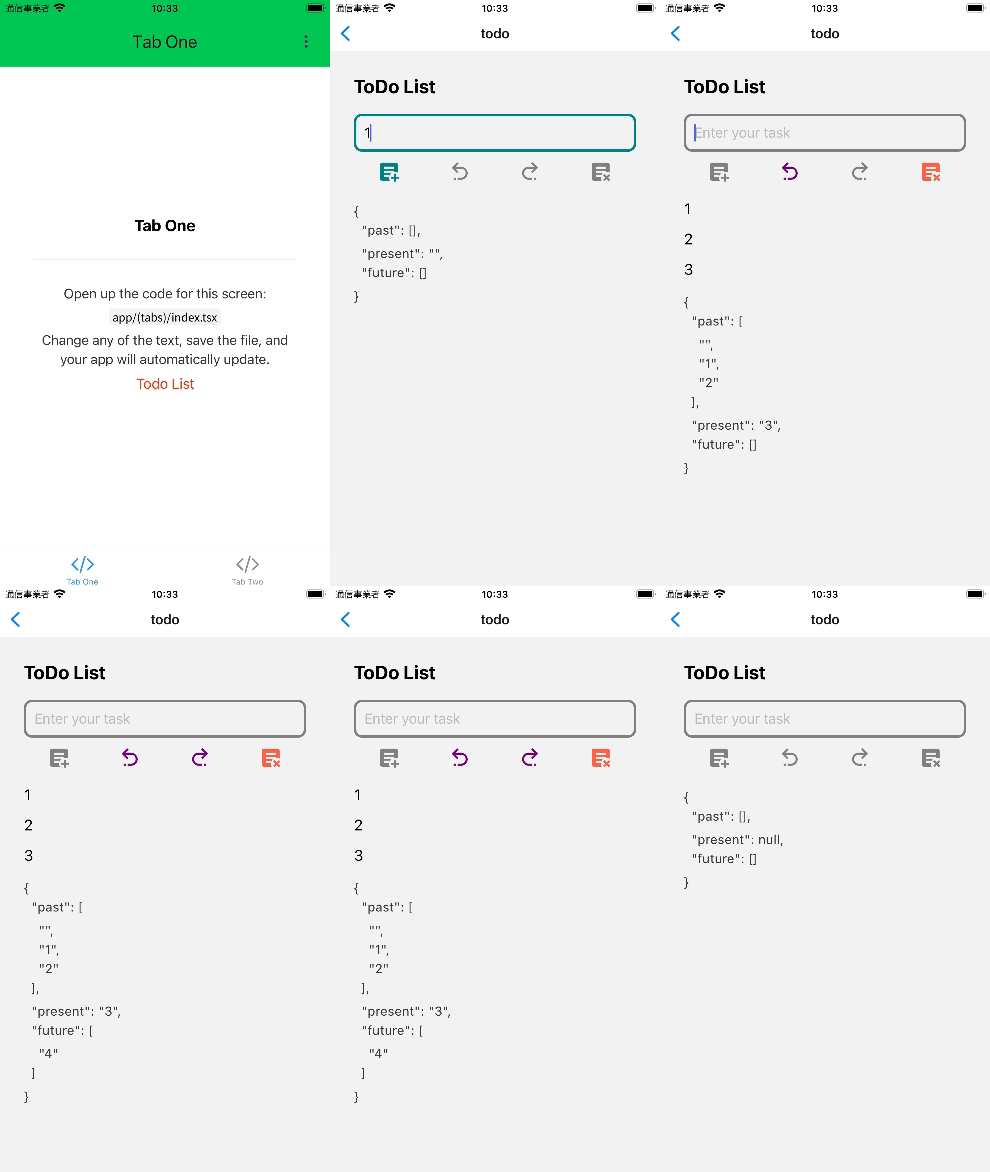
動作を確認する
下記のように動くと思います。
JSONデータで past present future プロパティーの変化も確認出来ます。
※参考文献:



コメント